Model Geometry (Pyvista)
At any point during model creation, you can run the opstool.vis.pyvista.plot_model() function to visualize the current model’s geometric details.
This function operates based on post-processed data saved during the modeling process, ensuring accurate visualization.
You can use opstool.vis.pyvista.plot_model() anywhere within your model script.
It reads the predefined data, such as nodes and elements, and generates a visual representation of the model.
[1]:
import opstool as opst
import opstool.vis.pyvista as opsvis
Here, we use a built-in example from opstool, which is an example of a cable-stayed bridge model primarily composed of frame elements and shell elements. For your own model script, simply place the :func:opstool.vis.plotly.plot_model function anywhere you need visualization.
A Bridge Example
[2]:
opst.load_ops_examples("CableStayedBridge")
# or your model code here
quick plot
[3]:
plotter = opsvis.plot_model()
plotter.show()
# plotter.show()
Saving Model Data (Optional)
We can first save the model geometry data by assigning a unique label to the result database using the parameter
`odb_tag`.
This label is used to identify the data.
For more details, see opstool.post.save_model_data().
[4]:
opst.post.save_model_data(odb_tag=1)
OPSTOOL :: Model data has been saved to .opstool.output/ModelData-1.nc!
Visualization
We use the opstool.vis.pyvista.set_plot_props() function to predefine some common visualization properties, which will affect all subsequent visualizations of models, eigenvalues, and responses.
[5]:
opsvis.set_plot_props(point_size=0, line_width=3, notebook=True)
Note
If you are not working in Jupyter Notebook or JupyterLab, ensure that `notebook=False`.
Visualization is straightforward; simply call the opstool.vis.pyvista.plot_model() function.
The odb_tag parameter helps you identify which dataset to use.
For details on various parameters, refer to the opstool.vis.pvista.plot_model().
[6]:
plotter = opsvis.plot_model(odb_tag=1)
plotter.show(jupyter_backend="static")
# plotter.show()
OPSTOOL :: Loading model data from .opstool.output/ModelData-1.nc ...
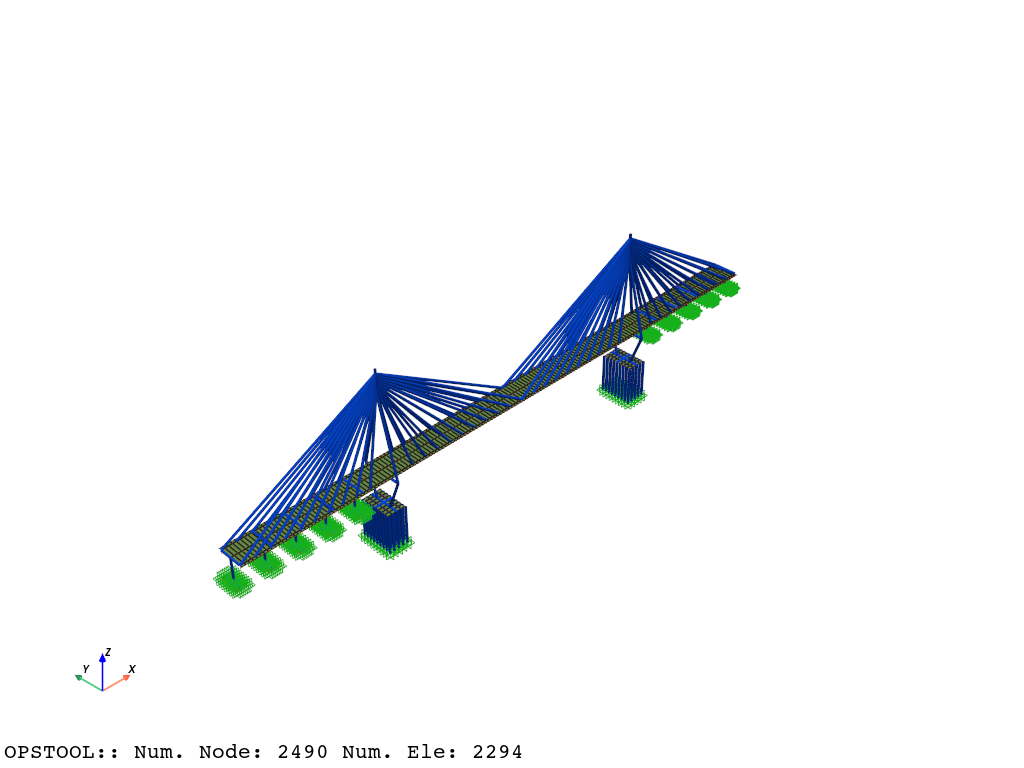
The function opstool.vis.pyvista.plot_model() returns a pyvista.Plotter. object, which you can visualize using the show method.
You can use Plotter.show. to display the plotting window.
You can also use Plotter.export_html. to export this plotter as an interactive scene to an HTML file.