Eigen (Pyvista)
The eigenvalue (modal) visualization provides insights into the dynamic characteristics of the structure. It includes the following features:
Mode Shapes: Visual representation of how the structure deforms under specific vibration modes.
Natural Frequencies or Periods: Display of corresponding frequencies or periods for each mode, enabling detailed analysis of structural dynamics.
Animation: Dynamic visualization of the mode shapes to better understand the structural response.
Using the visualization tools, you can:
Analyze the vibration patterns of the structure.
Identify critical modes that may impact structural performance.
Evaluate the effectiveness of design modifications in improving dynamic behavior.
[1]:
import opstool as opst
import opstool.vis.pyvista as opsvis
Here, we use a built-in example from opstool, which is an example of a suspension bridge model primarily composed of frame elements and shell elements.
[2]:
opst.load_ops_examples("SuspensionBridge")
# or your model code here
Save the eigen analysis results
Although not mandatory, you can use the save_eigen_data function to save eigenvalue analysis data, which can help you better understand how opstool operates.
Parameters:
odb_tag: Specifies the label for the output database.
mode_tag: Specifies the number of modes to save. Modal data within the range
[1, mode_tag]will be saved.
For detailed usage, please refer to the opstool.post.save_eigen_data().
[3]:
opst.post.save_eigen_data(odb_tag=1, mode_tag=10)
Using DomainModalProperties - Developed by: Massimo Petracca, Guido Camata, ASDEA Software Technology
OPSTOOL :: Eigen data has been saved to .opstool.output/EigenData-1.nc!
modal visualization
The modal visualization feature allows you to explore the dynamic behavior of structures by visualizing their mode shapes.
Parameters:
``odb_tag``: Helps identify which database to read the results from.
``subplots``: When set to
True, uses subplots to display multiple mode shapes in a single figure.``mode_tags``: Specifies the modes to visualize.
For example,
mode_tags=4visualizes modes[1, 4].mode_tags=[2, 5]visualizes modes from 2 to 5.
Note
The highest mode number specified in mode_tags must not exceed the maximum mode number saved using the save_eigen_data function.This flexibility allows for detailed and customized visualization of the modal data, making it easier to analyze structural behavior.
In actual use, notebook=False should be used. This is just for the convenience of generating documents.
[4]:
opsvis.set_plot_props(point_size=0, line_width=3, cmap="coolwarm", notebook=True)
Note
If you are not working in Jupyter Notebook or JupyterLab, ensure that `notebook=False`.
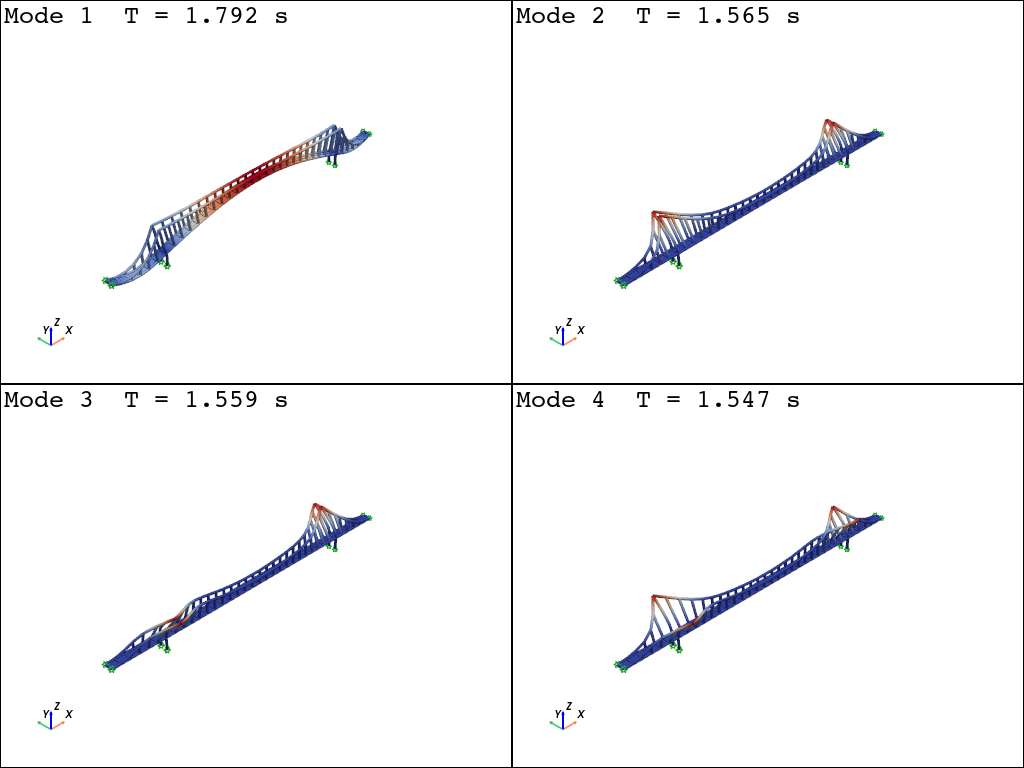
Plot mode shape by subplots
For detailed parameters and customization options, please refer to the opstool.vis.plotly.plot_eigen().
[6]:
plotter = opsvis.plot_eigen(
    mode_tags=4,
    odb_tag=1,
    subplots=True,
)
plotter.show(jupyter_backend="jupyterlab")
# plotter.show()
OPSTOOL :: Loading eigen data from .opstool.output/EigenData-1.nc ...
Plot mode shape by slides
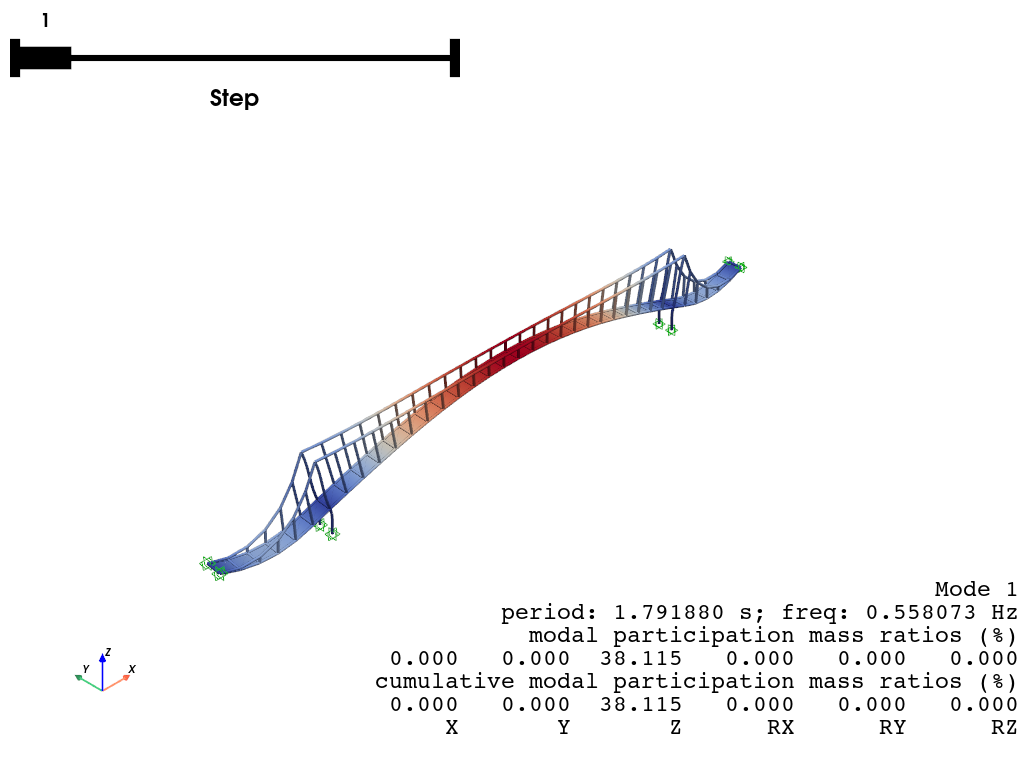
When subplots set to False, displays the mode shapes as a slideshow, transitioning between modes.
[5]:
plotter = opsvis.plot_eigen(
    mode_tags=3,
    odb_tag=1,
    subplots=False,
)
plotter.show(jupyter_backend="jupyterlab")
# plotter.show()
OPSTOOL :: Loading eigen data from .opstool.output/EigenData-1.nc ...
Plot mode shape by animation
The following example demonstrates how to animate Mode 1:
[7]:
plotter = opsvis.plot_eigen_animation(mode_tag=1, odb_tag=1, savefig="images/EigenAnimation.gif")
plotter.close()  # must be invoked to generate the gif
# plotter.show()
OPSTOOL :: Loading eigen data from .opstool.output/EigenData-1.nc ...
Animation has been saved to images/EigenAnimation.gif!
