Note
Go to the end to download the full example code.
Shell Element Responses
import openseespy.opensees as ops

import opstool as opst
import opstool.vis.pyvista as opsvis
Model and gravity load
opst.load_ops_examples("Shell3D")

ops.timeSeries("Linear", 1)
ops.pattern("Plain", 1, 1)
_ = opst.pre.gen_grav_load(direction="Z", factor=-9810)
The original Tcl file comes from http://www.dinochen.com/, and the Python version is converted by opstool.tcl2py().
opsvis.set_plot_props(point_size=0, line_width=3)  # notebook=False for practical use
fig = opsvis.plot_model(show_nodal_loads=True, show_ele_loads=True, show_outline=True)
fig.show()
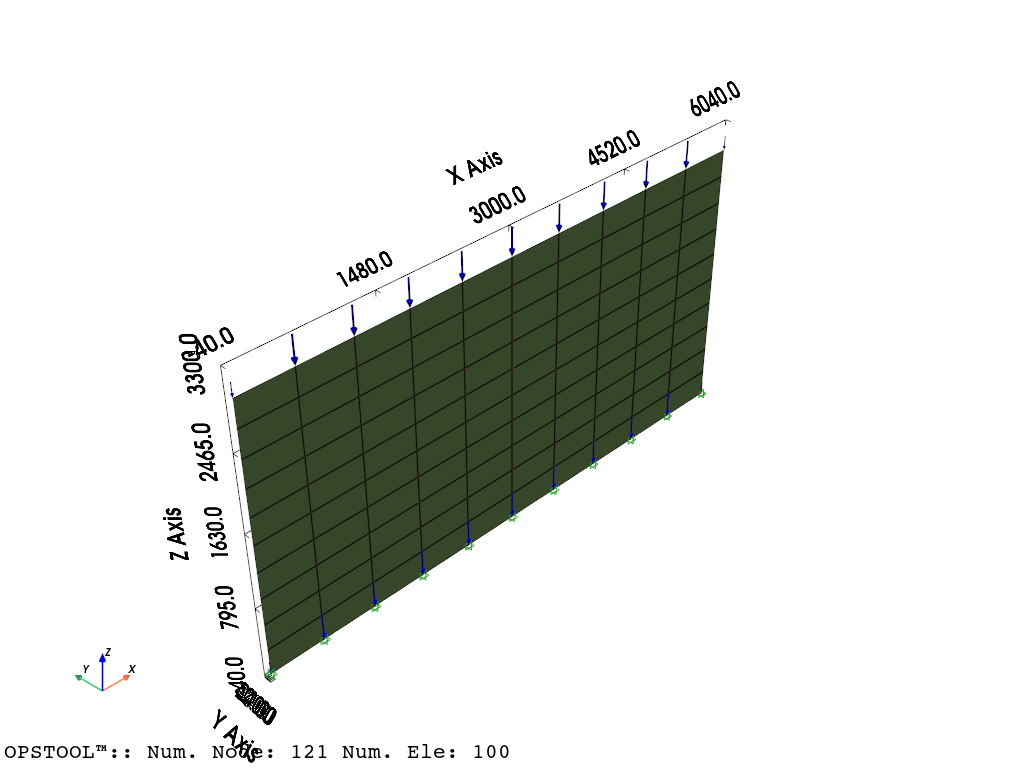
Gravity analysis
ops.constraints("Transformation")
ops.numberer("RCM")
ops.system("BandGeneral")
ops.test("NormDispIncr", 1.0e-8, 6, 2)
ops.algorithm("Linear")
ops.integrator("LoadControl", 0.1)
ops.analysis("Static")
Save the responses
ODB = opst.post.CreateODB(
    odb_tag=1,
    project_gauss_to_nodes="copy",  # project gauss point responses to nodes, optional ["copy", "average", "extrapolate"]
)
for _ in range(10):
    ops.analyze(1)
    ODB.fetch_response_step()
ODB.save_response()
OPSTOOL™ :: All responses data with _odb_tag = 1 saved in G:\opstool\docs\.opstool.output\RespStepData-1.odb!
Visualize the results
Nodal responses, project_gauss_to_nodes needs to be set to “copy”, “average”, or “extrapolate” when creating the ODB
opsvis.set_plot_props(cmap="coolwarm_r", show_mesh_edges=True)

fig = opsvis.plot_unstruct_responses(
    odb_tag=1,
    slides=False,
    step="absMax",
    ele_type="Shell",
    resp_type="sectionForcesAtNodes",  # nodal response, "AtNodes"
    resp_dof="FXX",
)
fig.show()
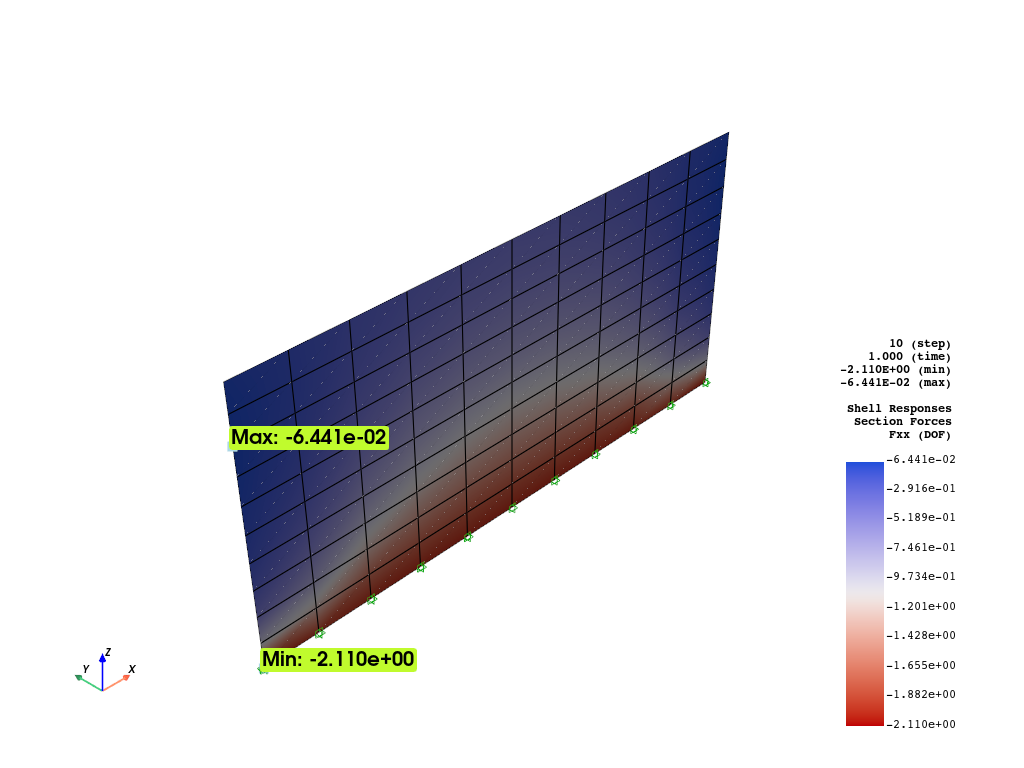
OPSTOOL™ :: Loading responses data from G:\opstool\docs\.opstool.output\RespStepData-1.odb ...
Display the responses at each element, all gauss points will be averaged to the element level.
fig = opsvis.plot_unstruct_responses(
    odb_tag=1,
    slides=True,
    ele_type="Shell",
    resp_type="sectionForces",  # element response, "AtGaussPoints", will be averaged to each element
    resp_dof="FXX",
)
fig.show()
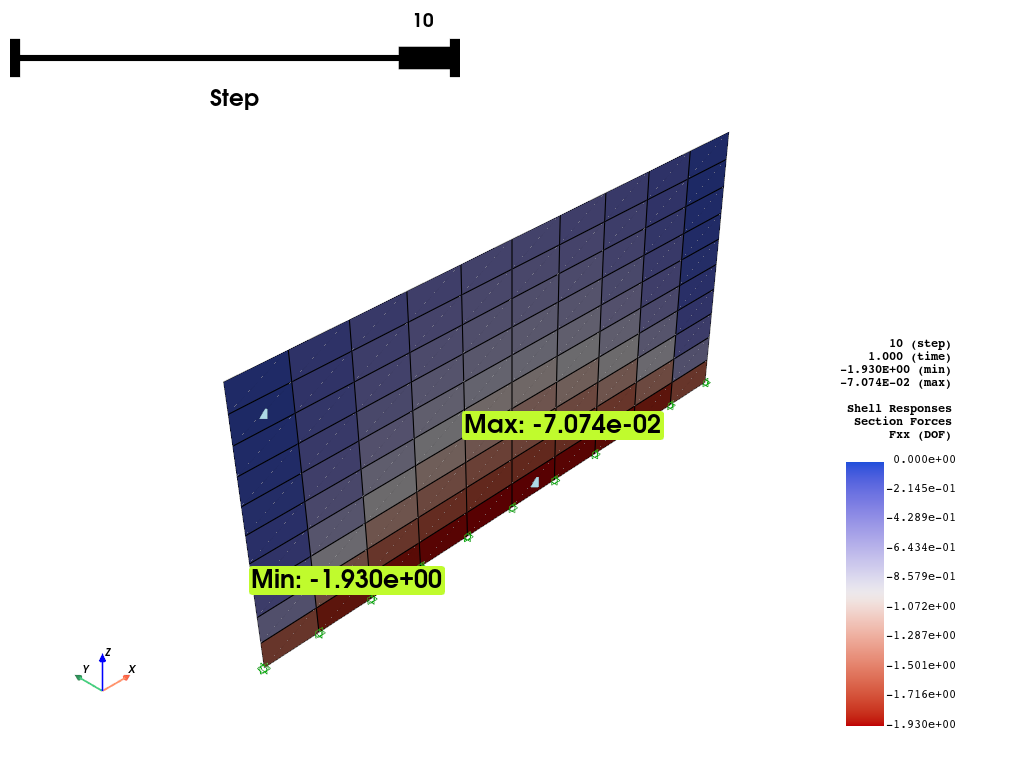
OPSTOOL™ :: Loading responses data from G:\opstool\docs\.opstool.output\RespStepData-1.odb ...
Fiber point stress can be plotted as well, but it requires a shell_fiber_loc to be assigned.
sphinx_gallery_thumbnail_number = 5
fig = opsvis.plot_unstruct_responses(
    odb_tag=1,
    slides=False,
    step="absMax",
    ele_type="Shell",
    resp_type="StressesAtNodes",  # nodal stress response, "AtNodes"
    resp_dof="sigma11",  # sigma11, sigma22, sigma12, sigma13, sigma23
    shell_fiber_loc="top",  # shell_fiber_loc can be "top", "bottom", or "mid" for shell elements, also int
)
fig.show()
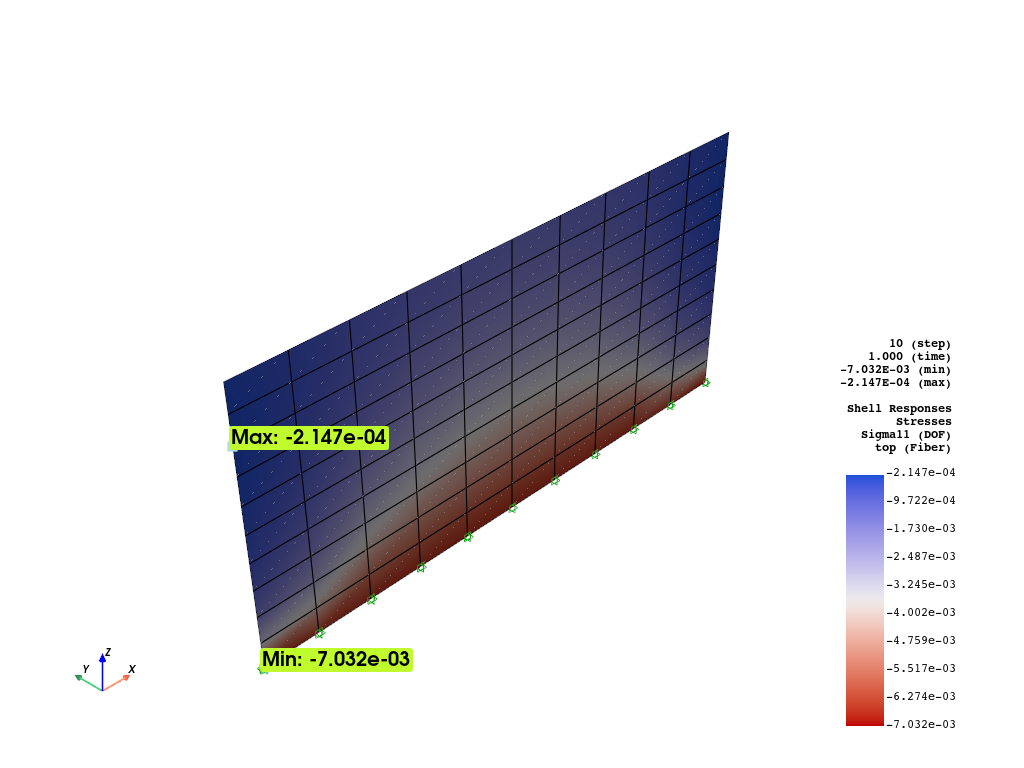
OPSTOOL™ :: Loading responses data from G:\opstool\docs\.opstool.output\RespStepData-1.odb ...
Interacting with Pyvista
Since version 1.0.18, opstool provides a function get_unstruct_responses_dataset that returns a
pyvista UnstructuredGrid
so that you can take advantage of all the functionality on it.
import pyvista as pv

grid = opsvis.get_unstruct_responses_dataset(
    odb_tag=1,
    step="absMax",
    ele_type="Shell",
    resp_type="StressesAtNodes",  # nodal stress response, "AtNodes"
    resp_dof="sigma11",  # sigma11, sigma22, sigma12, sigma13, sigma23
    shell_fiber_loc="top",  # shell_fiber_loc can be "top", "bottom", or "mid" for shell elements, also int
)
OPSTOOL™ :: Loading responses data from G:\opstool\docs\.opstool.output\RespStepData-1.odb ...
print(grid)
print("--" * 20)
print(grid.active_scalars_name)
UnstructuredGrid (0x2a3918e6620)
  N Cells:    100
  N Points:   121
  X Bounds:   0.000e+00, 6.000e+03
  Y Bounds:   0.000e+00, 0.000e+00
  Z Bounds:   0.000e+00, 3.000e+03
  N Arrays:   1
----------------------------------------
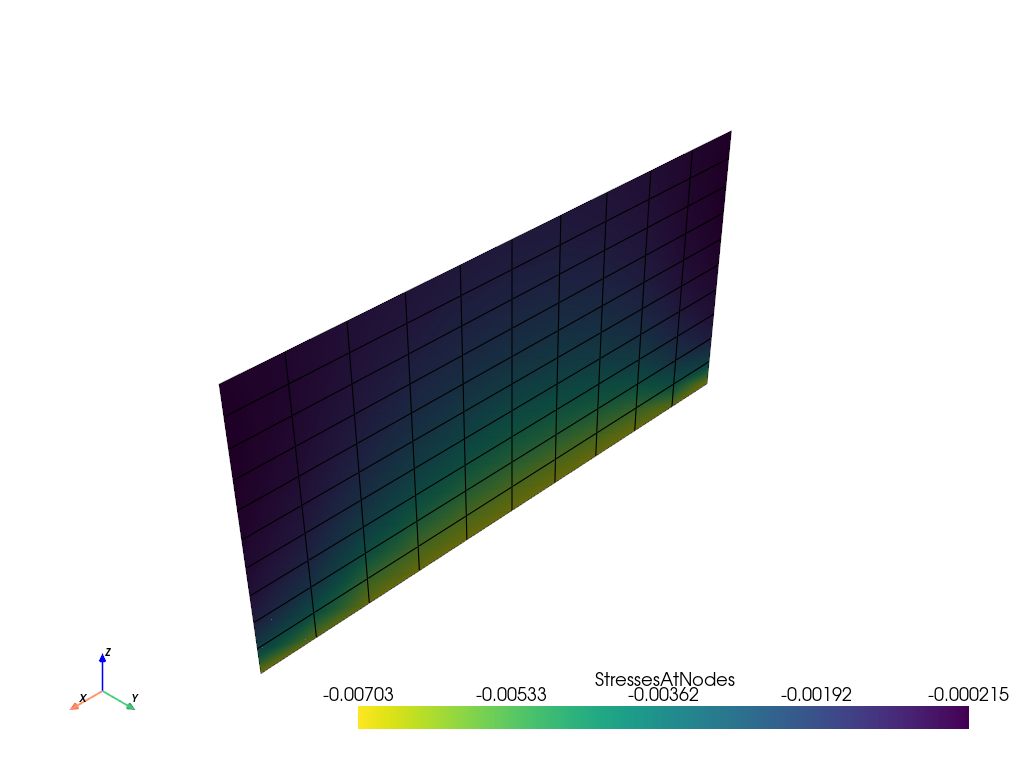
StressesAtNodes
grid.plot(show_edges=True, cmap="viridis_r", show_scalar_bar=True)
Plot Over Line
print(grid.bounds)
BoundsTuple(x_min =    0.0,
            x_max = 6000.0,
            y_min =    0.0,
            y_max =    0.0,
            z_min =    0.0,
            z_max = 3000.0)
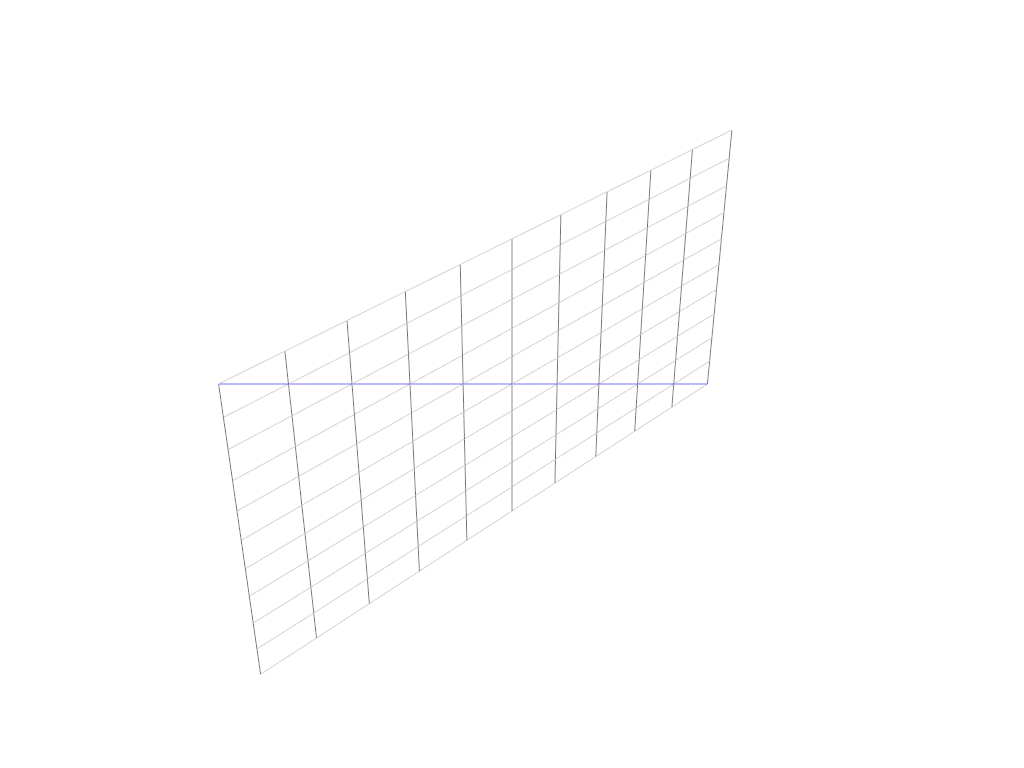
a = [0, 0, 0]
b = [6000, 0, 3000]  # A line from (0, 0, 0) to (0, 0, 1)

# Preview how this line intersects this mesh
line = pv.Line(a, b)

p = pv.Plotter()
p.add_mesh(grid, style="wireframe", color="w")
p.add_mesh(line, color="b")
p.show()
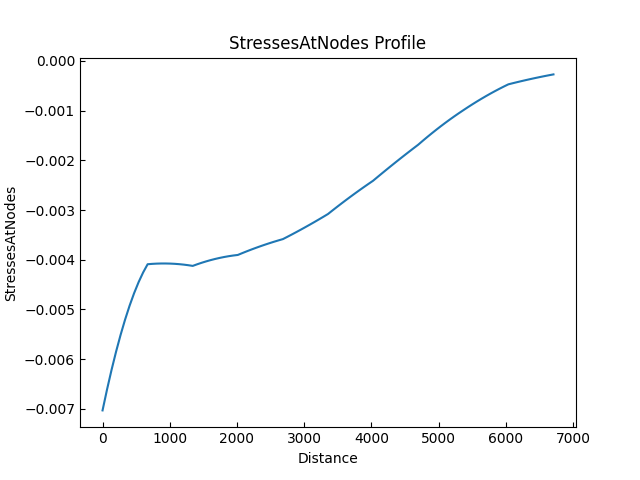
grid.plot_over_line(a, b)
More details can be found in the PyVista Examples.
Total running time of the script: (0 minutes 3.173 seconds)