✨ Visualization based on pyvista#
First load the necessary classes and functions, where GetFEMdata is used to get the model data from the current domain of OpenSeesPy,
and OpsVisPyvista is used to visualize the model.
Function load_ops_examples() is used to load predefined examples from opstool.
[1]:
import openseespy.opensees as ops
import opstool as opst
Load the 3D Arch Bridge finite element model.
[2]:
opst.load_ops_examples("ArchBridge")
Display OpenSeesPy Geometry Model#
Get the model data from the current domain. Of course, you can also run your own model code before instantiating GetFEMdata.
Parameter results_dir is used to specify the directory where the output file is saved.
[3]:
ModelData = opst.GetFEMdata(results_dir="opstool_output")
ModelData.get_model_data(save_file="ModelData.hdf5")
Model data saved in opstool_output/ModelData.hdf5!
Instantiating visualization class OpsVisPyvista.
[4]:
opsvis = opst.OpsVisPyvista(point_size=2, line_width=3,
                            colors_dict=None, theme="document",
                            color_map="Spectral", on_notebook=False,
                            results_dir="opstool_output")
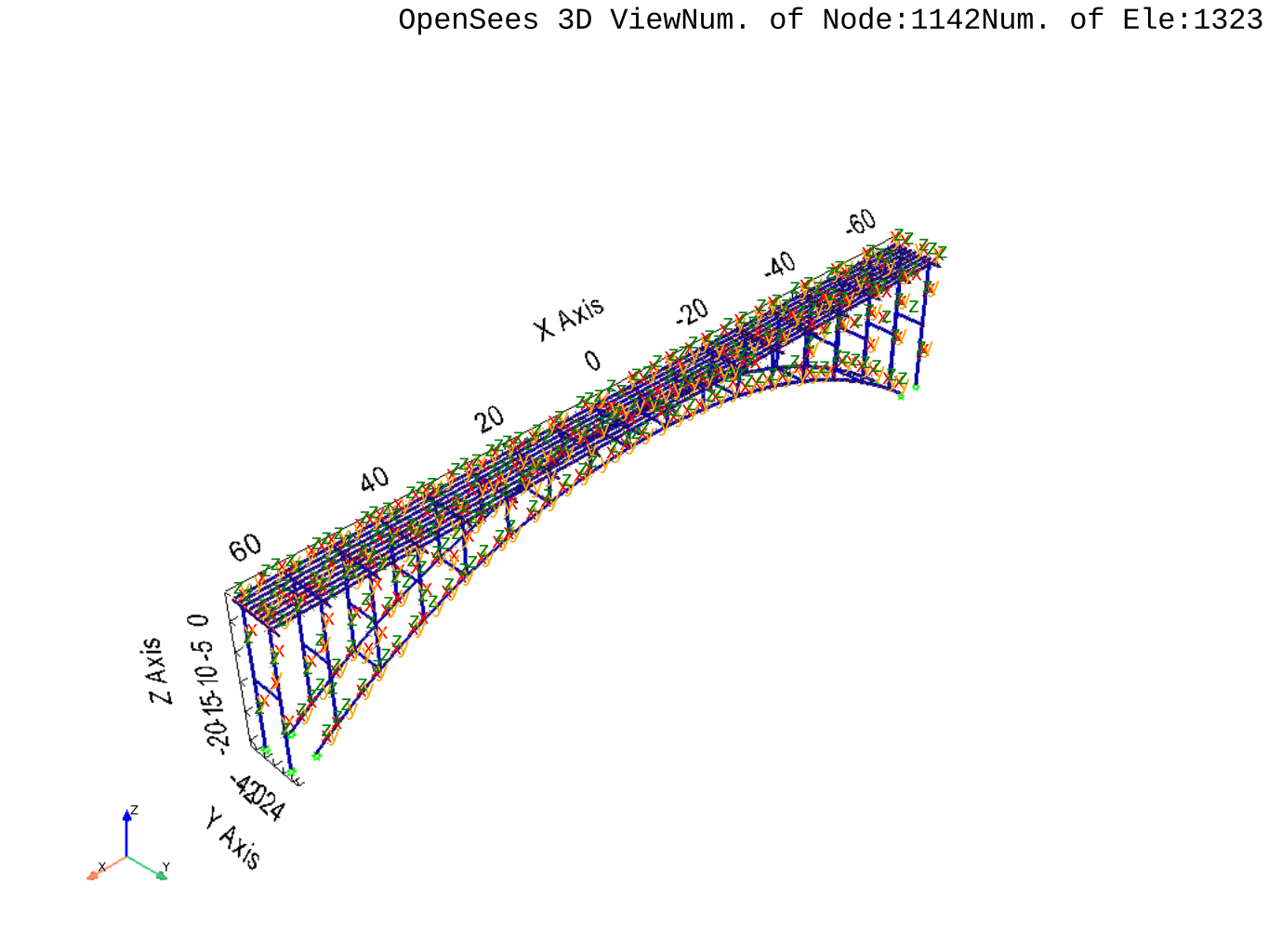
Display the geometric information of the model, Input parameter explanation see class method model_vis().
[5]:
opsvis.model_vis(input_file="ModelData.hdf5",
                 show_node_label=False, show_ele_label=False,
                 show_local_crd=True, label_size=8,
                 show_outline=True,
                 opacity=1.0,
                 save_fig='images/ModelVis.svg')
Display Eigen Analysis#
Note
Before performing the eigenvalue analysis, you need to ensure that the OpenSeesPy model is correct and that the mass is set.
Obtain the first 20 orders of modal data.
[6]:
ModelData.get_eigen_data(mode_tag=20, solver="-genBandArpack",
                         save_file='EigenData.hdf5')
Eigen data saved in opstool_output/EigenData.hdf5 !
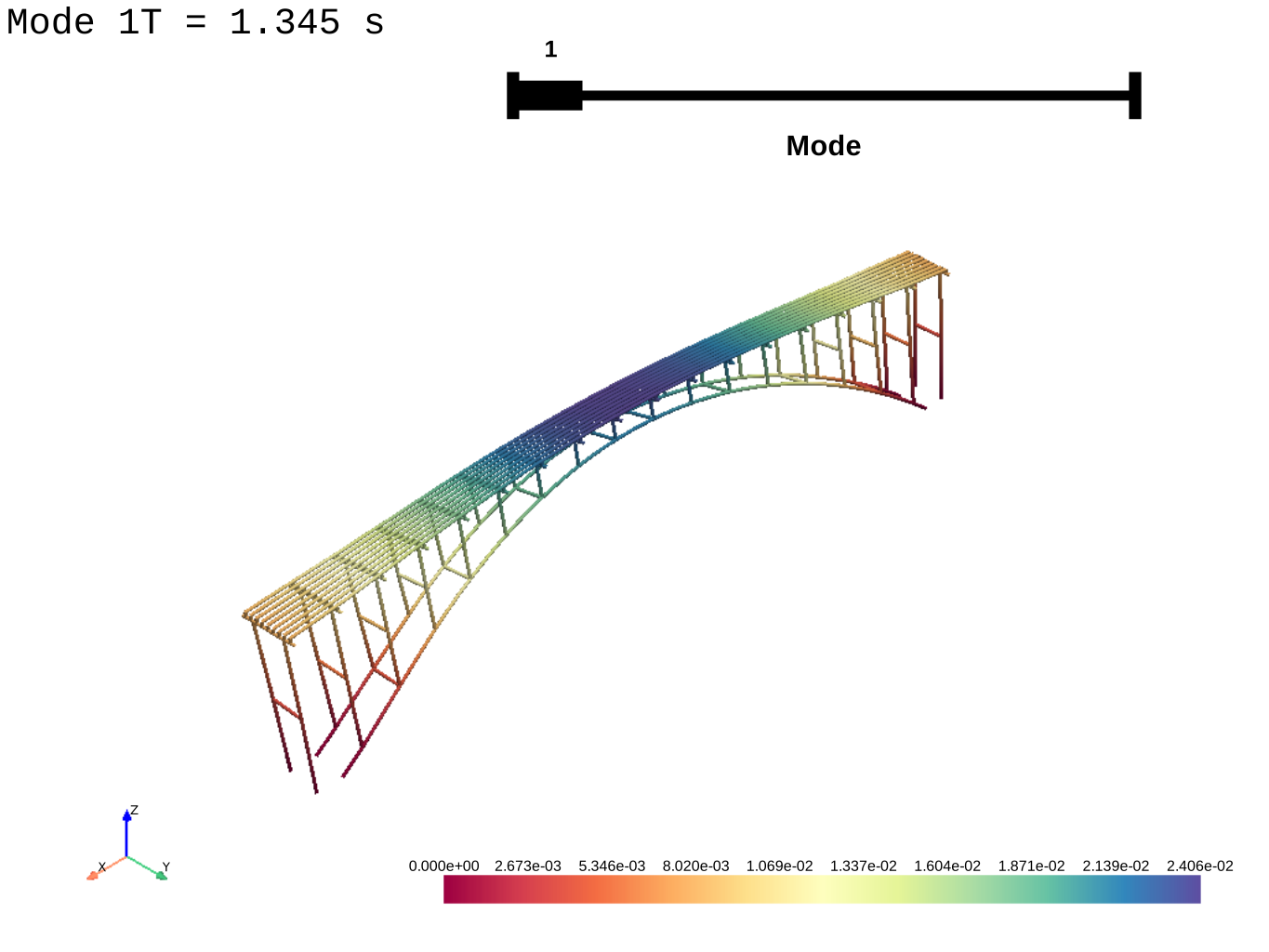
Visualize eigenvalue modes. When you set a two-element list for the argument mode_tags and subplots is False, the method eigen_vis() returns a slider-style plot.
[7]:
opsvis.eigen_vis(input_file='EigenData.hdf5',
                 mode_tags=[1, 20], subplots=False,
                 alpha=None, show_outline=False,
                 show_origin=False, opacity=1.0,
                 show_face_line=False, save_fig='images/EigenVis.svg')
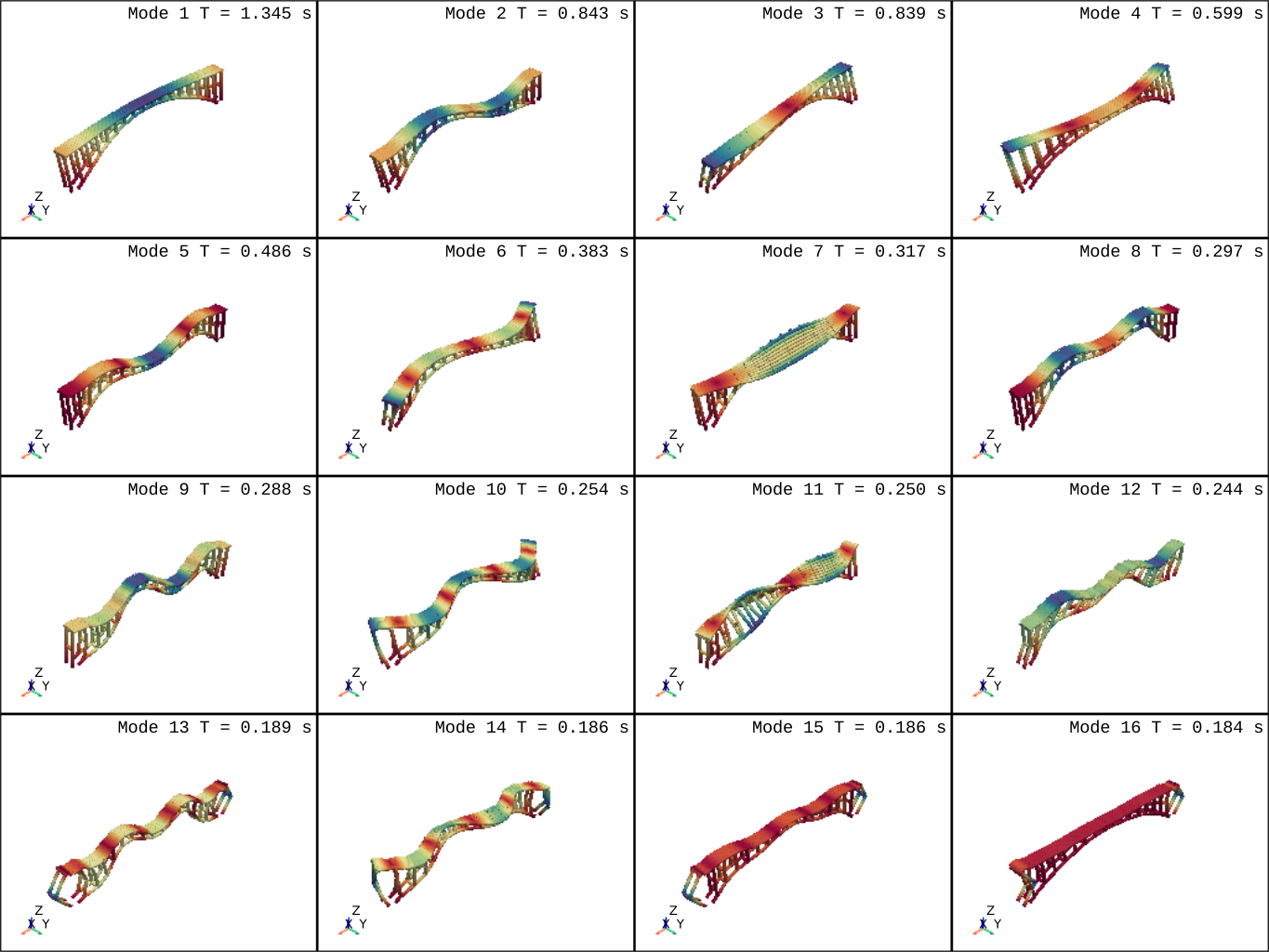
Of course, subplots set to True will return a multi-sub plot.
[8]:
opsvis.eigen_vis(input_file='EigenData.hdf5',
                 mode_tags=[1, 16], subplots=True,
                 alpha=None, show_outline=False,
                 show_origin=False, opacity=1.0,
                 show_face_line=False, save_fig='images/EigenVis2.svg')
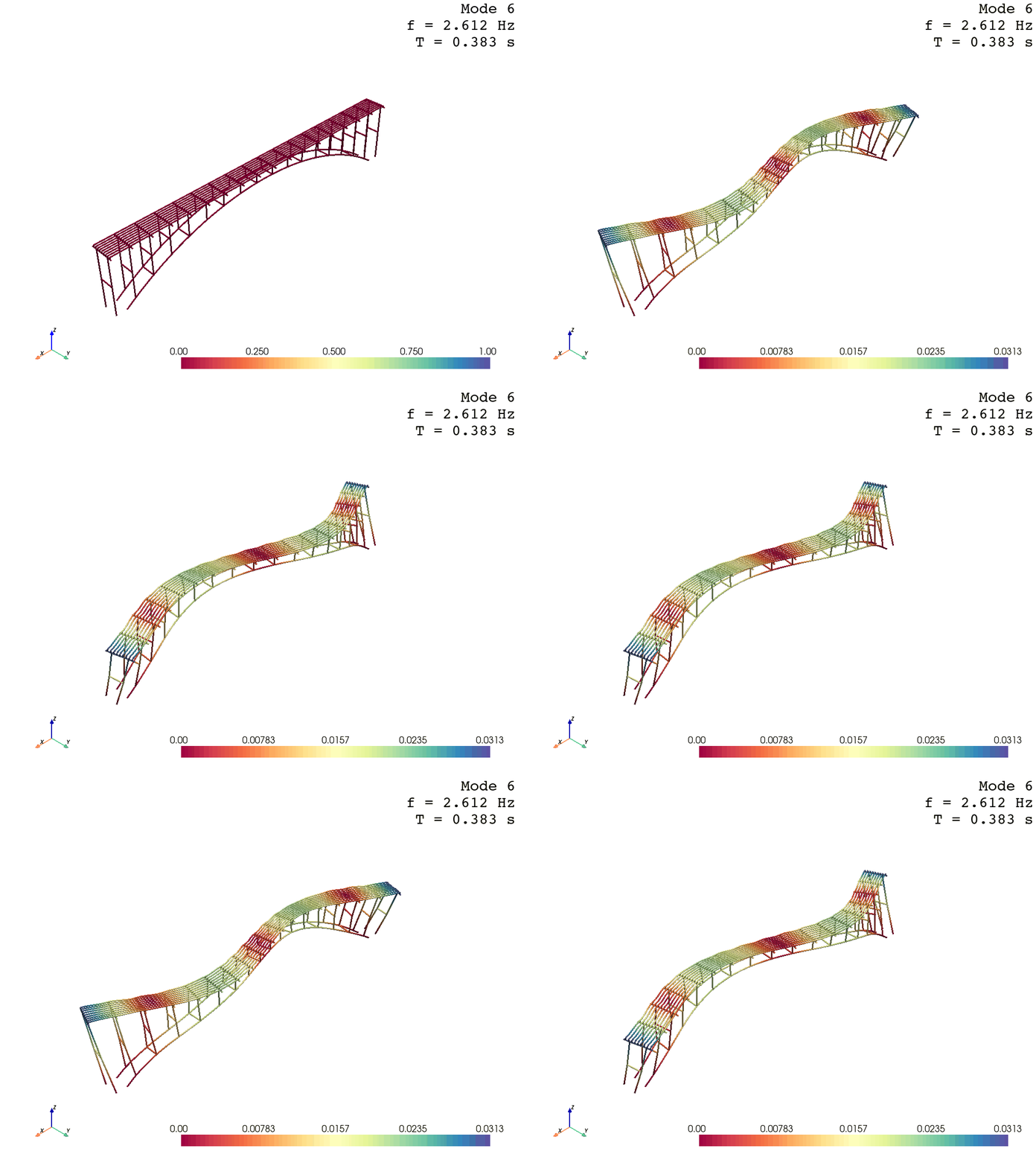
You can also create an gif or mp4 animation by eigen_anim().
opsvis.eigen_anim(input_file='EigenData.hdf5',
                  mode_tag=6, alpha=None,
                  show_outline=False,
                  opacity=1, framerate=3,
                  show_face_line=True,
                  save_fig="images/EigenAnimation.gif")
Display Response Data#
First we use the function gen_grav_load() to generate the gravity load.
[9]:
opst.gen_grav_load(ts_tag=1, pattern_tag=1,
                   factor=-9.81, direction="Z")
Next, we save the response data in each analysis step. I chose to do this to strip the visualization from the analysis, and you are free to tweak the analysis parameters, which is very helpful for debugging the convergence of the model!
Note that parameters num_steps, total_time and stop_cond are used to tell get_node_resp_step() how many steps to output the data after,
depends on which of the three arrives first.
The arg model_update is useful when the model changes, eg., some elements are removed.
In addition, it is also used get_frame_resp_step() here to obtain the response data of the beam elements.
[10]:
Nsteps = 10
ops.wipeAnalysis()
ops.system('BandGeneral')
ops.constraints('Transformation')
ops.numberer('RCM')
ops.test('NormDispIncr', 1.0e-12, 10, 3)
ops.algorithm('Newton')
ops.integrator('LoadControl', 1 / Nsteps)
ops.analysis('Static')

# Important!!!! to clear step data in previous analysis case!
ModelData.reset_steps_state()
# start analysis loop
for i in range(Nsteps):
    ok = ops.analyze(1)
    ModelData.get_node_resp_step(num_steps=Nsteps,
                                 total_time=10000000000,
                                 stop_cond=False,
                                 save_file="NodeRespStepData-1.hdf5",
                                 model_update=False)
    ModelData.get_frame_resp_step(num_steps=Nsteps,
                                  total_time=10000000000,
                                  stop_cond=False,
                                  save_file="BeamRespStepData-1.hdf5")
Node response data saved in opstool_output/NodeRespStepData-1.hdf5 !
Frame elements response data saved in opstool_output/BeamRespStepData-1.hdf5 !
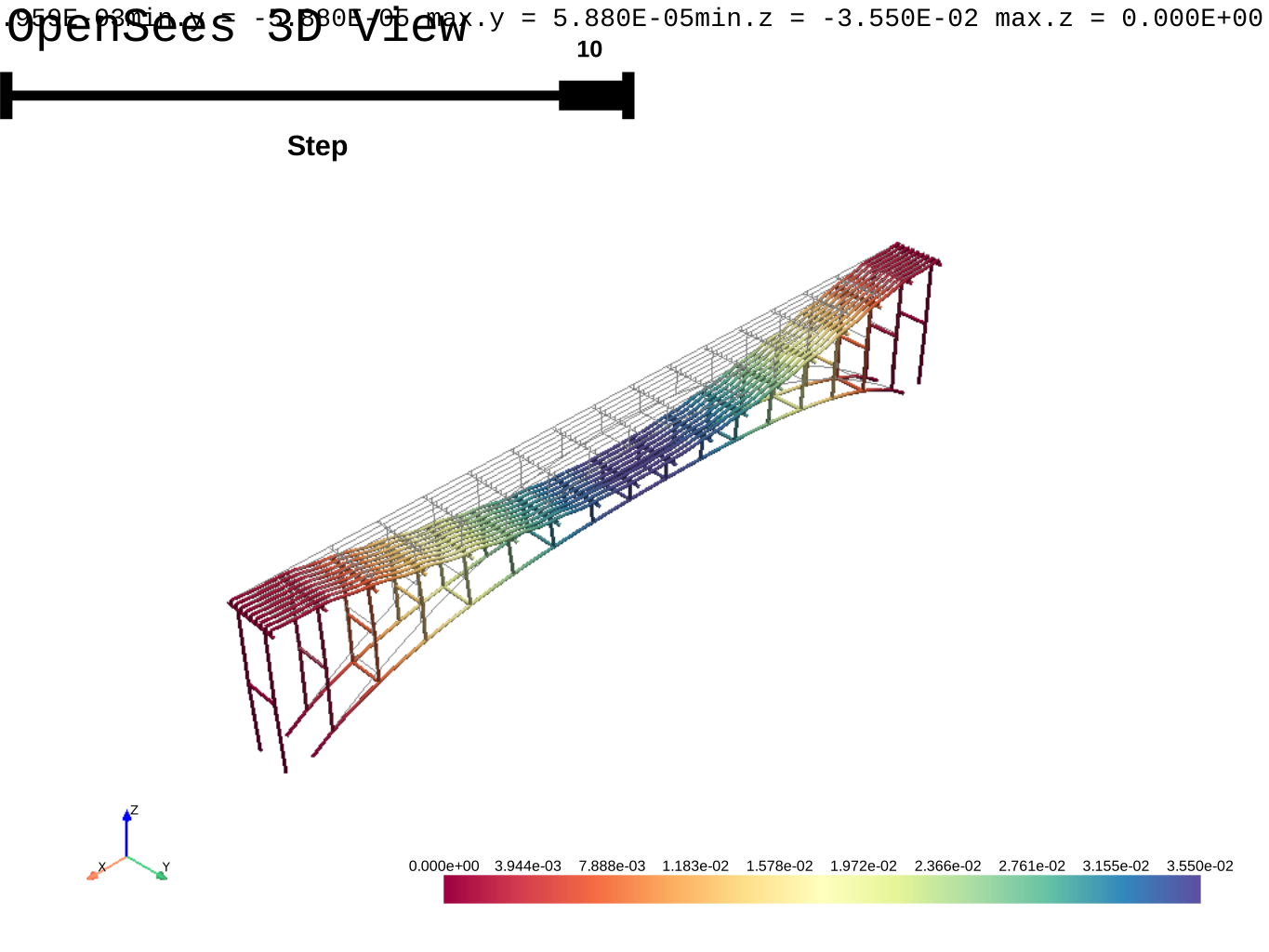
Visualize node displacement by method deform_vis().
Of course, velocity and acceleration are also optional, just change response to “vel” or “accel”.
[11]:
opsvis.deform_vis(input_file="NodeRespStepData-1.hdf5",
                  slider=True,
                  response="disp", alpha=None,
                  show_outline=False, show_origin=True,
                  show_face_line=False, opacity=1,
                  save_fig="images/DefoVis.svg",
                  model_update=False)
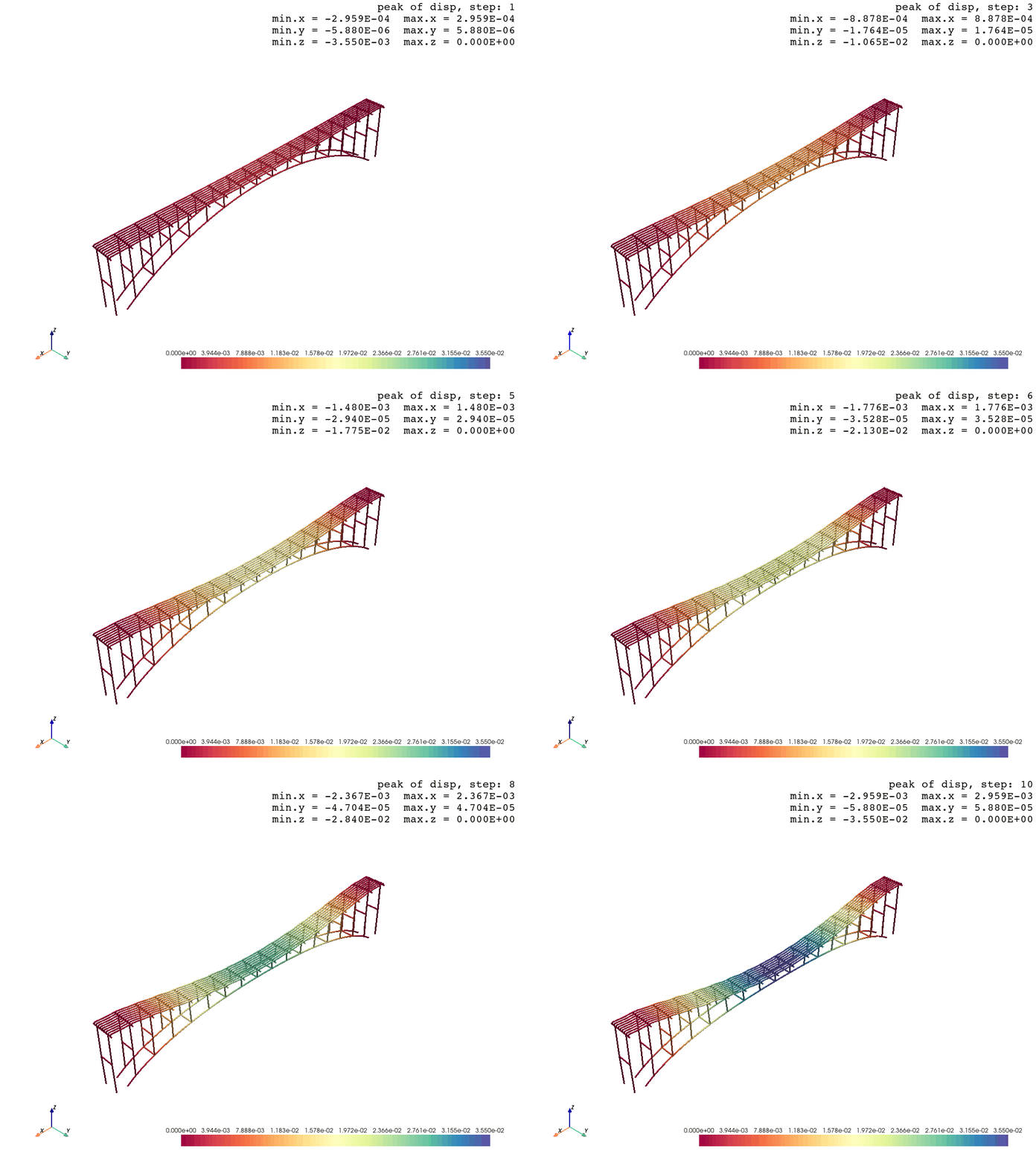
Create an html animation by deform_anim().
opsvis.deform_anim(input_file="NodeRespStepData-1.hdf5",
                   response="disp", alpha=None,
                   show_outline=False,
                   framerate=2,
                   show_face_line=False, opacity=1,
                   save_fig="images/DefoAnimation.gif",
                   model_update=False)
Display Frame Element Response#
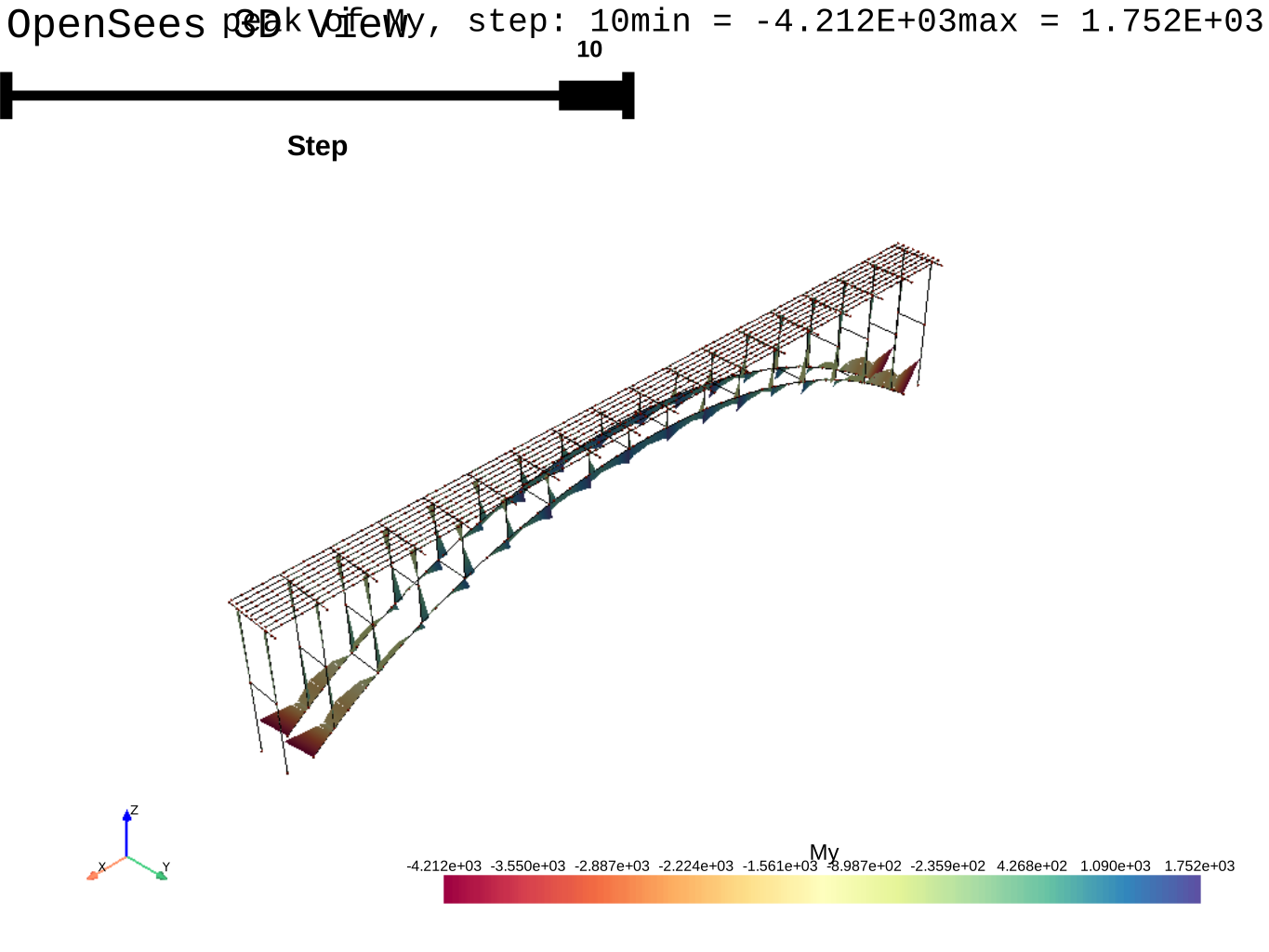
When saving the node response data, we also save the response of the frame elemengts by method get_frame_resp_step(), which you can visualize in the following way.
[12]:
opsvis.frame_resp_vis(input_file="BeamRespStepData-1.hdf5",
                      ele_tags=None,
                      slider=True,
                      response="My",
                      show_values=False,
                      alpha=None,
                      opacity=1,
                      save_fig="images/FrameRespVis.svg")